
Remove objects and people
Erase photobombers, cables, signs or clutter and fill the space naturally.

Brush over any part of your photo and describe what should be there. Remove unwanted objects, replace details or add something new – the rest of the image stays untouched.
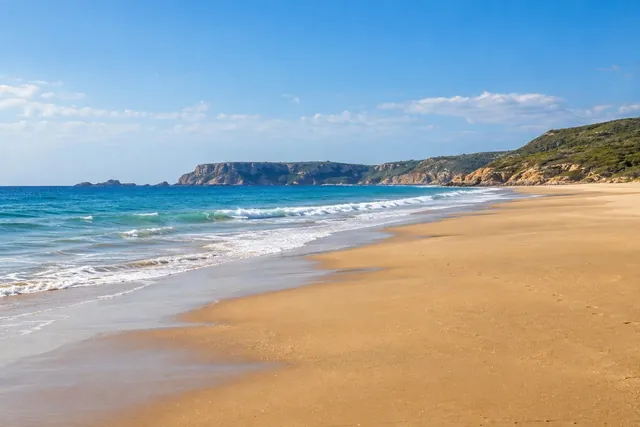 BeforeAfter
“empty beach with gentle waves”
Inpainting is an AI technique that changes only the area you select. Paint over a part of your photo, write a short prompt and the AI fills that area with new content that matches the light, colors and perspective of the rest of the image. Everything outside your selection stays exactly as it was – so you get precise edits without layers, masks or editing skills.
“dramatic sunset sky with orange clouds”
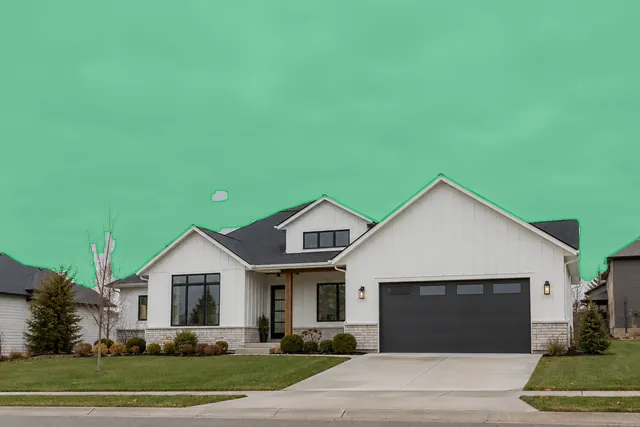
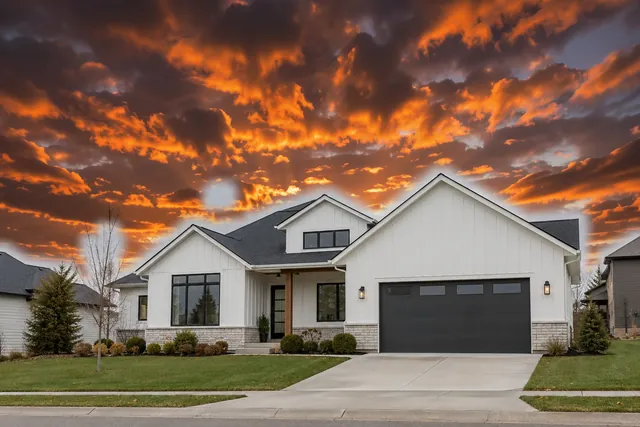 BeforeAfter
Drag and drop an image or choose one from your device.
Paint over the part you want to change. Cover it completely, with a little margin.
Write what should appear in that area, for example "empty sidewalk" or "a green plant in a white pot".
Compare before and after, edit the result again if needed and download your image.
Erase photobombers, cables, signs or clutter and fill the space naturally.
Swap a chair, change the sky or put a different item on the table.
Place a plant, a lamp or a decoration exactly where you want it.
Repaint a car, change a wall color or turn a table into marble.
Repair scratches and missing parts in old photos. Restoring a whole photo? Try AI Photo Restoration.
Remove dust, reflections or labels and prepare clean product images. Need ready-made packshots? Try Packshot Pro.
Real results of this tool: each shows the area that was brushed over and the prompt that was used. Load any of them into the editor and try it yourself.
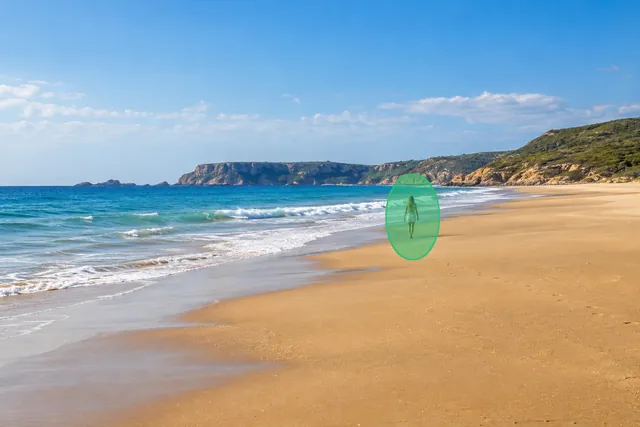
Selected: The person
Prompt: empty beach with gentle waves
Selected: The sky
Prompt: dramatic sunset sky with orange clouds
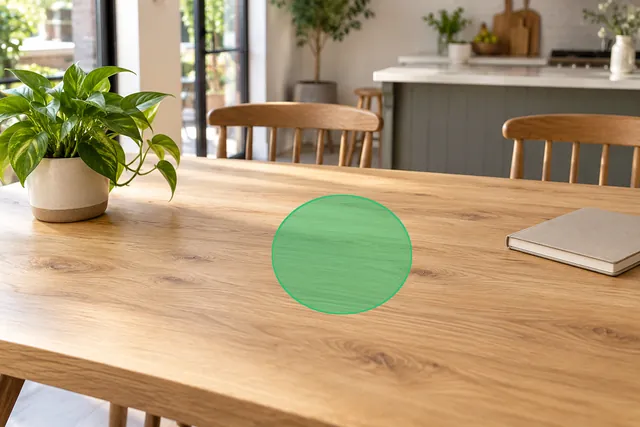
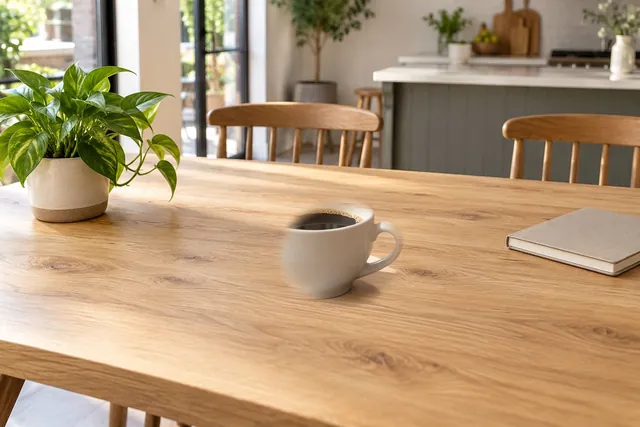
Selected: An empty spot on the table
Prompt: a cup of coffee on a saucer
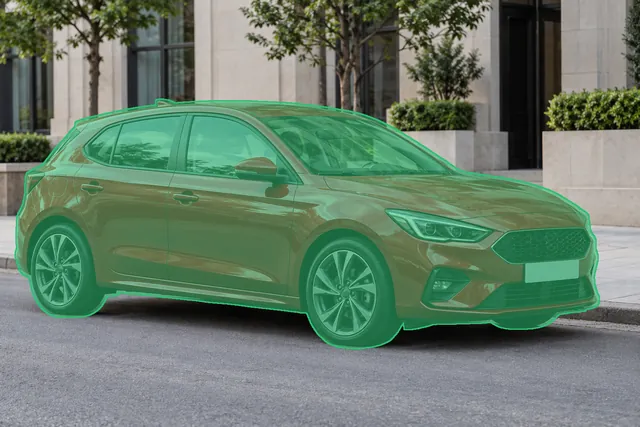
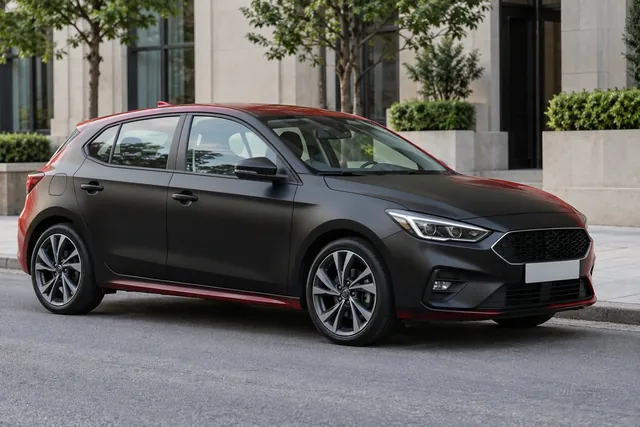
Selected: The car
Prompt: a matte black car
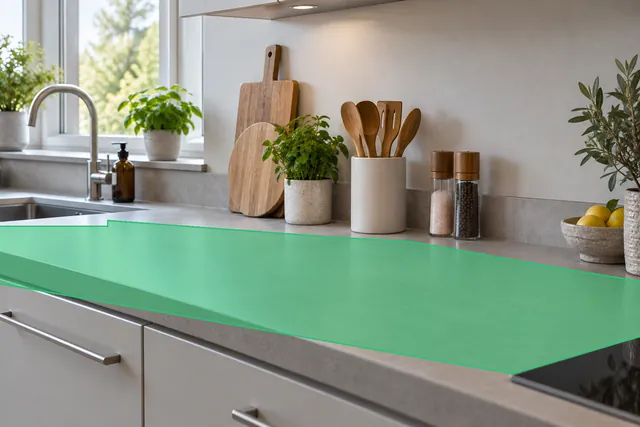
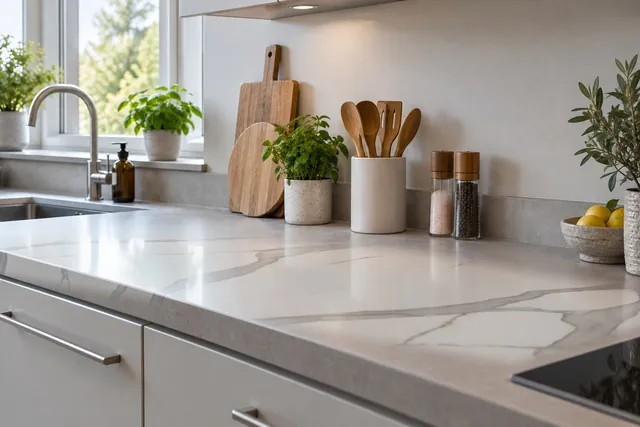
Selected: The countertop
Prompt: white marble countertop
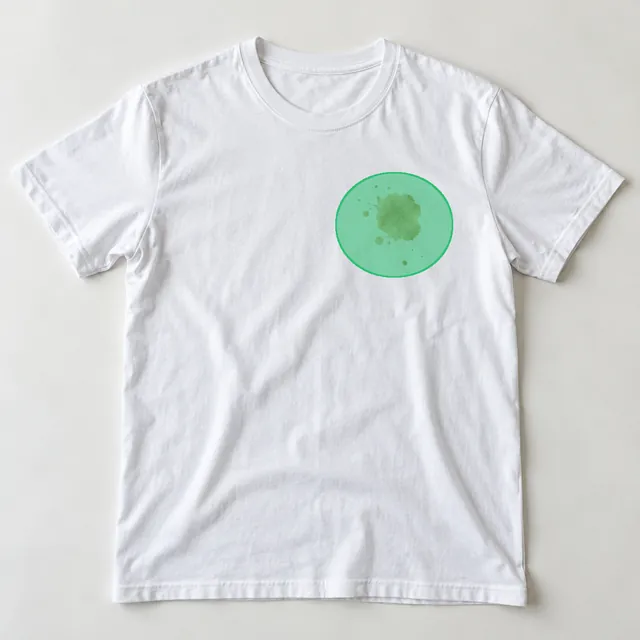
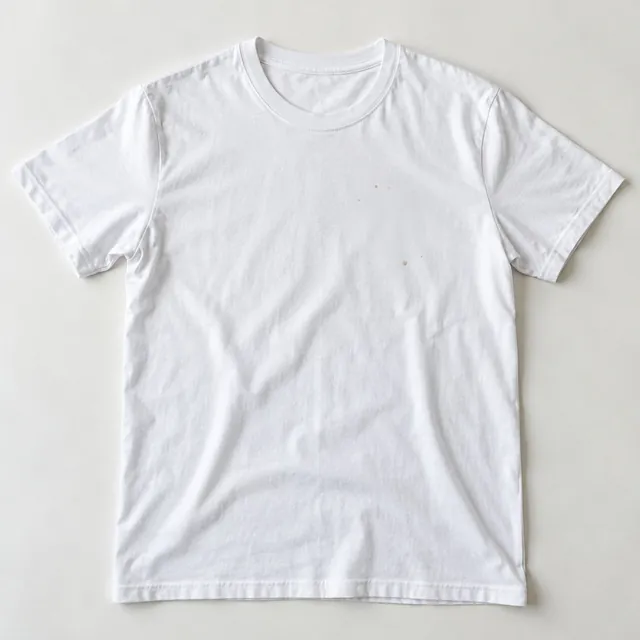
Selected: The stain
Prompt: clean white fabric
Describe what should be there, not what to remove. To remove a person from a beach, write "empty beach" rather than "remove the person".
Select a little more than needed. A small margin around the object helps the AI blend the edit with its surroundings.
Keep prompts short and specific. "A red brick wall" works better than a long description.
Make one change at a time. For several edits, finish one area, then edit the result again.
Use good-quality photos. Sharp images with even light give the most natural results.
Change only the area you select, with full control over where the edit happens.
You're here
Describe a change for the whole photo, such as a new background or style.
Open the AI Image Editor →Cut out the subject and get a transparent background.
Open Remove Background →Remove distractions and retouch details in seconds.
Clean up product photos and remove unwanted elements.
Remove clutter and fix details in property photos. Furnishing empty rooms? Try Virtual Staging.
Adapt images for campaigns without reshooting.
Fix travel and family photos by removing what doesn't belong.
Without an account
Edit photos instantly, no sign-up
Free account
Sign up, no credit card
PRO
Subscription or pay-as-you-go credits
Everyone can download a free Preview (500 px on the long edge). The full-resolution file needs an account.
AI inpainting is a way to edit only a selected part of an image. You mark an area and describe what should appear there, and the AI generates new content that blends with the rest of the photo.
Yes. Without an account you can make up to 3 edits a day, see the result with a watermark and download a free Preview (500 px on the long edge). A free account unlocks full-resolution downloads with a watermark; paid plans remove the watermark.
No. Inpainting works online in your browser, on desktop and mobile.
Brush over the object and describe what should be behind it, for example "empty street" or "green grass". The AI fills the area so the object disappears.
Brush over the place where the object should appear and describe it, for example "a vase with tulips".
Inpainting changes only the area you select. The AI Image Editor changes the whole image based on a text prompt.
Try selecting a slightly larger area, use a shorter prompt or edit the result again. Photos with even lighting usually blend best.
Yes. Open the page on your phone, upload a photo and use your finger to brush over the area.
Yes, for images you own or have the rights to use, in line with our Terms & Conditions.
Photos uploaded without an account are deleted, with all their files, after 24 hours. For registered accounts, files are kept according to your plan and our privacy policy.
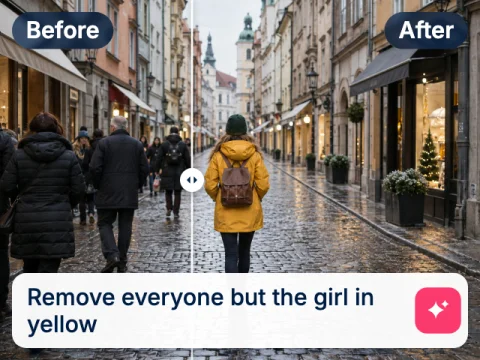
Change the whole photo by describing the edit in a prompt.
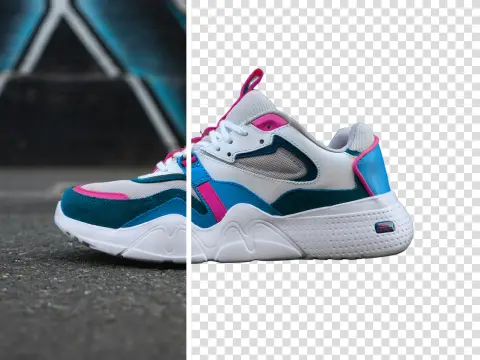
Cut out the subject in one click and get a transparent PNG.
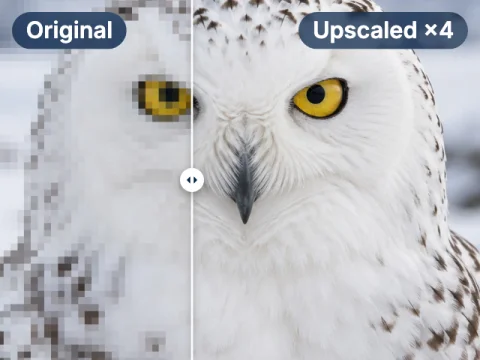
Enlarge photos up to 16× and keep the details sharp.
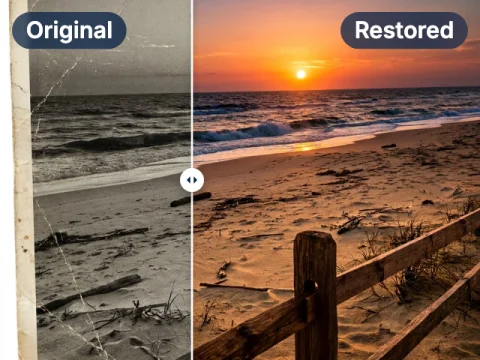
Repair scratches, tears and fading in old photos in one step.
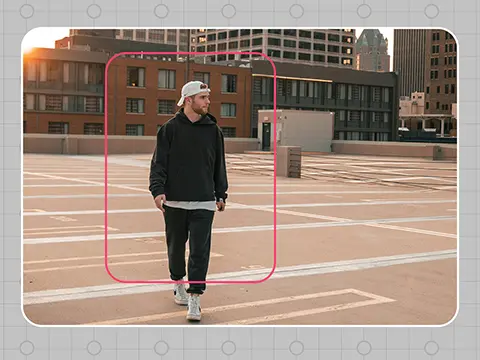
Extend a photo beyond its edges and fill the new space with AI.
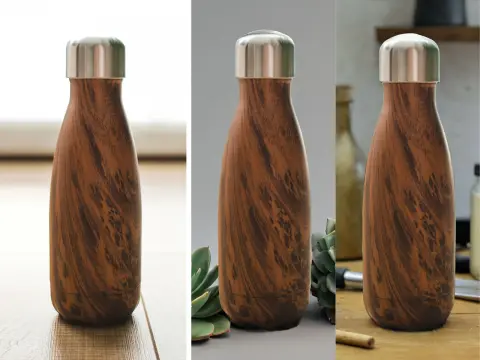
Turn a product photo into a styled scene for your shop or ads.
Edit any part of your photo
3 free edits a day, no sign-up. More with a free account or PRO from $7.50.